Stop the notetaker in the current meeting
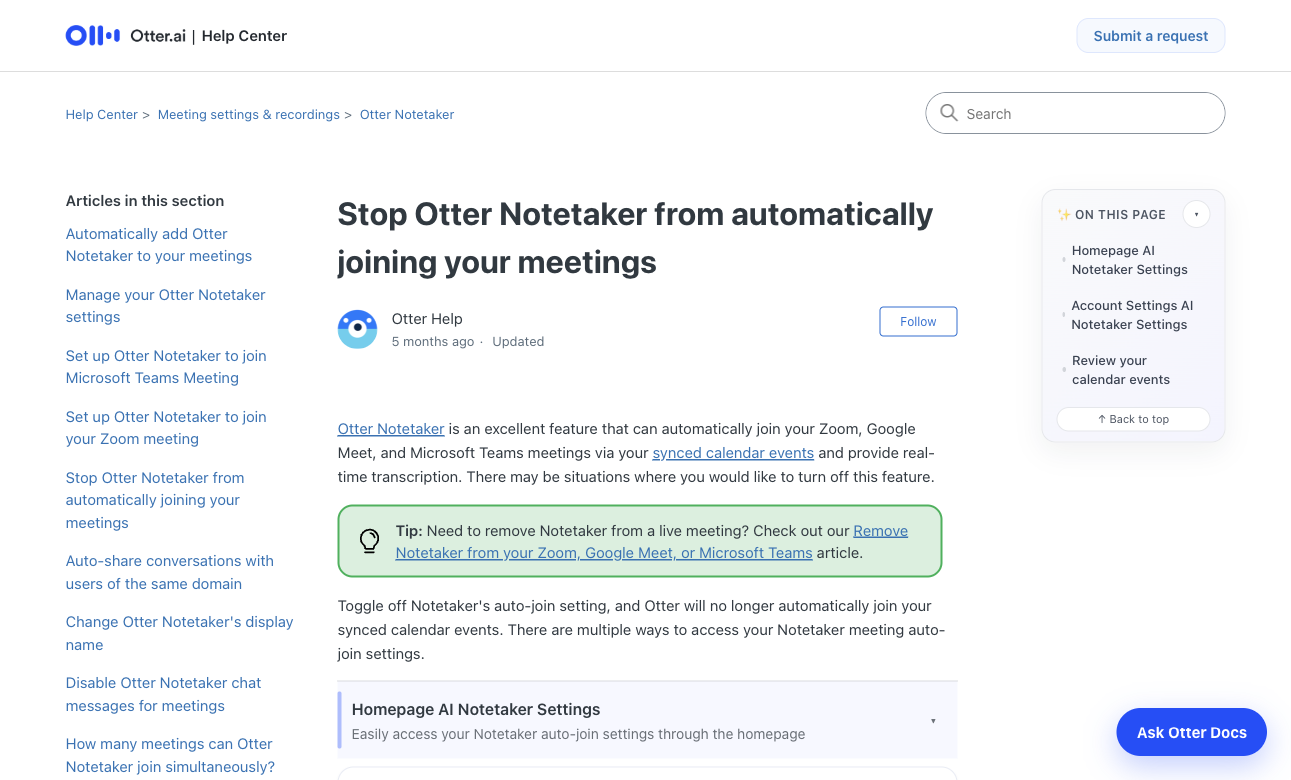
Otter's current help page says participants can enter the command below in meeting chat. Confirm the notetaker leaves the participant list before continuing. When several Otter notetakers are present, the command removes all of them.
To remove a specific notetaker, use the meeting participant controls if your role permits it, or open the Otter conversation link and use its stop control. If those controls are unavailable, ask the organizer to remove the participant.
stop otterChange the default to manual selection
The owner of the Otter account must change the account's future joining behavior. Removing a Teams app alone may not address a notetaker that follows synchronized calendar invitations.
- Sign in to the Otter account that owns the notetaker.
- Open Integrations, then the Meetings tab and the default auto-join settings.
- Choose Meetings I manually select.
- Return to the upcoming-meetings calendar and review each event with a notetaker toggle.
Check individually enabled and recurring events
Otter says events that were individually switched on or off retain those settings after a default change. Inspect the next occurrence of a recurring meeting and the rest of the series where possible.
Create a short test meeting and verify that no notetaker is added automatically. If it still appears, identify whose account owns it. Your account setting does not change another attendee's notetaker. Ask that person to disable their own joining rule.
When to disconnect the calendar
If you no longer want Otter to discover upcoming meetings, review the connected calendar in Otter's integrations and disconnect the relevant account. If your organization controls the integration, ask the administrator to review the account connection and meeting policy.
Disconnecting, removing an attendee and deleting past conversations have different effects. Check existing conversation sharing and retention separately if you also want to manage already-recorded material.
Verify the outcome
A successful change has two visible results: the notetaker is absent from the live meeting, and a newly created calendar event does not enable it automatically. Keep deliberate manual selection available if you still want transcription for some meetings.
The official help articles are linked below because interface labels and meeting permissions can change. Use those sources when a control is missing in your account.
Common questions
Do I need an Otter account to stop it in a meeting?
Otter documents the stop otter chat command for meeting participants, including those without an Otter account. Verify that the notetaker leaves; use the organizer's participant controls if needed.
Why does Otter return after I turn off auto-join?
Check events you previously enabled individually and confirm that the notetaker belongs to your account. Another attendee may have their own calendar connection.
Does removal delete the existing transcript?
Removing a notetaker stops its participation in that meeting. Review existing conversations and their sharing or deletion controls separately.
Official sources
We check official documentation, explain limits and link to our sources. These are editorial guides, not scored hands-on benchmarks. Plan availability can change; check the linked provider before paying.